
Learn how to fix common Starlink internet issues in 2026. Step-by-step troubleshooting guide for slow speed, disconnects, and no signal problems.
Introduction
Even though Starlink is one of the most advanced satellite internet services, users can still face issues like slow speeds, connection drops, or no signal.
Developed by SpaceX, Starlink continues to improve, but troubleshooting is still important for the best performance.
In this guide, we will show you how to fix common Starlink internet problems step by step.
Common Starlink Problems
Users often report these issues:
- Slow internet speed
- Connection drops
- No signal / no internet
- High latency or lag
Let’s fix them one by one.
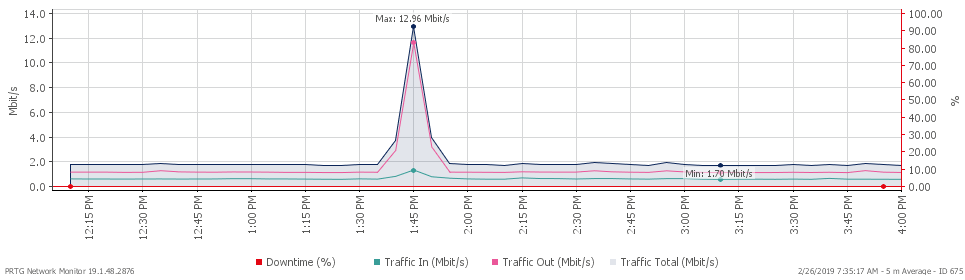
Fix Slow Starlink Speed
If your speed is slow, try these steps:
1. Check Obstructions
Make sure your dish has a clear view of the sky.
2. Restart Your Equipment
Turn off the router and dish, then restart after 2 minutes.
3. Reduce Connected Devices
Too many users can slow down your connection.
4. Check Peak Hours
Speeds may drop during busy times.
Fix Connection Drops
If your internet disconnects frequently:
- Reboot your Starlink system
- Update router firmware
- Check cable connections
- Avoid physical obstructions
Fix No Signal Problem
If you see “No Signal”:
- Check if the dish is properly aligned
- Remove trees or obstacles
- Inspect cables for damage
- Restart the system
Reduce High Latency (Ping)
To reduce ping:
- Use Ethernet instead of Wi-Fi
- Close background apps
- Restart router
- Play during off-peak hours
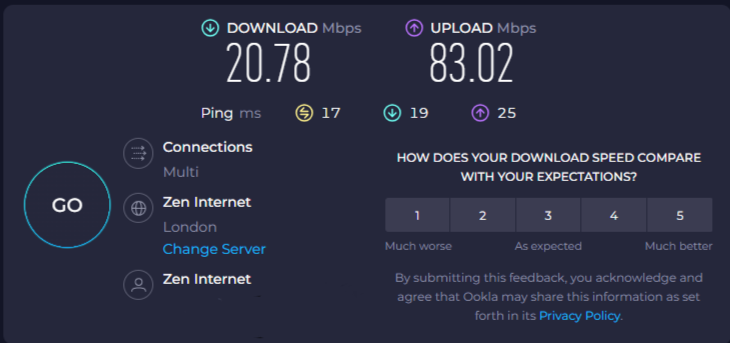
Advanced Troubleshooting Tips
1. Reset Router
Factory reset your router if problems continue.
2. Update Starlink App
Make sure your app is updated.
3. Check Power Supply
Ensure stable electricity for the system.
4. Contact Support
If nothing works, contact Starlink support.
When to Contact Support
You should contact support if:
- No signal for a long time
- Hardware damage
- Frequent disconnections
FAQ Section
Why is my Starlink internet slow?
It may be due to obstructions, peak usage, or too many devices.
How do I reset Starlink?
Turn off the power, wait 2 minutes, then turn it back on.
Does the weather affect Starlink?
Yes, heavy rain or storms can impact performance.
Why does Starlink disconnect?
It may be due to signal issues, cables, or network congestion.
Conclusion
Starlink internet issues are usually easy to fix with basic troubleshooting. By following the steps above, you can improve speed, stability, and overall performance.
With proper setup and maintenance, Starlink can deliver a reliable internet experience in 2026.
Deep Diagnostic Using the Starlink App
The Starlink App is your most powerful troubleshooting tool. Open the app and check:
- Outage Alerts – Shows if there’s a network issue in your area
- Obstruction Map – Detects if trees/buildings block your signal
- Speed Test Tool – Measures real-time performance
Regularly checking the app helps you identify problems quickly without guessing.
Dish Placement Optimization Guide
One of the most common causes of issues is poor dish placement.
For best performance:
- Install the dish at the highest possible point
- Avoid trees, walls, and poles blocking the sky
- Use roof mounting for maximum exposure
- Ensure 360° clear sky visibility
Even small obstructions can cause drops and speed issues.

Cable and Hardware Inspection
Sometimes the problem is not the network, but your hardware.
Check:
- Power cable for damage
- Ethernet adapter (if using a wired connection)
- Loose or bent connectors
- Router overheating
Replacing faulty cables can instantly fix connection problems.
Network Congestion Management
During peak hours, Starlink speeds may slow due to high user demand.
To handle this:
- Schedule downloads at night
- Avoid streaming during gaming
- Limit device usage during peak times
This helps maintain stable performance even when the network is busy.
Firmware and System Updates
SpaceX regularly pushes updates to improve performance.
Make sure:
- Your Starlink system updates automatically
- Router firmware is current
- App is updated to the latest version
Updates can fix bugs and improve speed without any manual effort.
Advanced Reset Method (Full System Reset)
If basic restart doesn’t work, try a full reset:
- Unplug Starlink power
- Wait 5 minutes
- Plug back in
- Let system fully reconnect (10–15 minutes)
This clears temporary glitches and refreshes the connection.
Environmental Factors You Should Know
External conditions can impact performance:
- Heavy rain → speed drops
- Snow → signal blockage
- Heat → hardware performance issues
Keeping your dish clean and properly placed helps reduce these effects.
Pro Tips for Maximum Stability
- Use Ethernet instead of Wi-Fi
- Keep the router in an open space
- Avoid signal interference devices
- Restart the system once a week
These small habits can significantly improve reliability.
Related Articles
- Starlink Speed Test Results 2026 – Real Data
- Starlink for Gaming Setup Guide – Best Settings
- Is Starlink Worth It in 2026? Honest Review
- Starlink for Gaming Setup Guide – Best Settings for Low Ping